

Managing material orders shouldn’t eat up hours of your day. From switching between outdated spreadsheets and websites, to calling dealers and tracking down receipts, the traditional ordering process pulls you away from what matters at the job site—building quality home projects on time and on budget.
Just think about what it requires. Every time you switch from site management to project management costs time and focus. Maybe you start in your bulky spreadsheet to build a quote, then log into your dealer’s website to check pricing and availability, and then manually input the prices. That also introduces errors and a quote that maybe is outdated by the time it reaches the client.
One of the biggest challenges in construction is knowing your true material costs to create accurate estimates. National catalog prices rarely reflect what you’ll actually pay at the register. When numbers don’t seem right, you’re on the phone with your account rep to make it right.
After placing the order, you track it through yet another website page. When materials arrive, receipts come via email, and you manually enter them back into your accounting system. Each handoff introduces delays, errors and the frustration of managing information across systems that don’t talk to each other.
Buildxact’s new effort with The Home Depot for ordering project materials changes this dynamic. You can now order materials directly from your estimates or projects, see live pricing with your Pro Xtra discounts, track deliveries and manage all your receipts in one place. No more jumping between systems or chasing down paperwork. The estimating software becomes a true platform for doing multiple administrative tasks.
Material Receipts for Better Cost Tracking
What is Direct Ordering through Buildxact?
Direct ordering connects your Buildxact estimates to The Home Depot, allowing you to purchase materials without leaving your estimating and job management workflow. When you build an estimate using The Home Depot catalog, items found there can be ordered with a few clicks. Your preferred pricing, store discounts and bulk savings all come through.
Every order you place syncs back into Buildxact for cost tracking. Whether you buy online through Buildxact, order directly from The Home Depot’s website or purchase in-store, the receipts appear in your account. This means your actual costs stay aligned with your material budgets without manual data entry.
Creating Material Orders with Building Material Estimating Software
Three main pathways let you start an order, depending on where you are in Buildxact:
From your estimates
When building an estimate, you can select The Home Depot materials and click “create material order.” This works well for smaller jobs, like a project for a repeat client or a quick remodel where getting back to the client quickly matters.
After sending a quote, a prompt appears asking if you want to order the materials now. You can proceed immediately, or save the order as a draft to complete later. The choice depends on your confidence level and how quickly construction needs to start.
From your jobs
Once an estimate has been accepted by the customer and you create a job, ordering becomes more straightforward. Most builders prefer this approach because contracts are signed and clients have committed. You have two options here:
- Select specific items from your job’s material list and order them individually
- Use the “create material order” button to pull all The Home Depot items at once.
The first method works when you’re staging purchases. Frame lumber this week, drywall next week, finish materials the week after. The second option saves time when you need everything ordered quickly.
Ad hoc ordering
Sometimes you need materials that aren’t tied to any specific estimate or job. A team member calls saying they’re out of joint compound, let’s say. Or, let’s say, you’re picking up supplies and forgot spacers on a tile job.
The material orders screen lets you search The Home Depot’s catalog and build an order from scratch. Items go straight to your cart without needing an estimate or job number attached.
Other Ordering Features in Buildxact
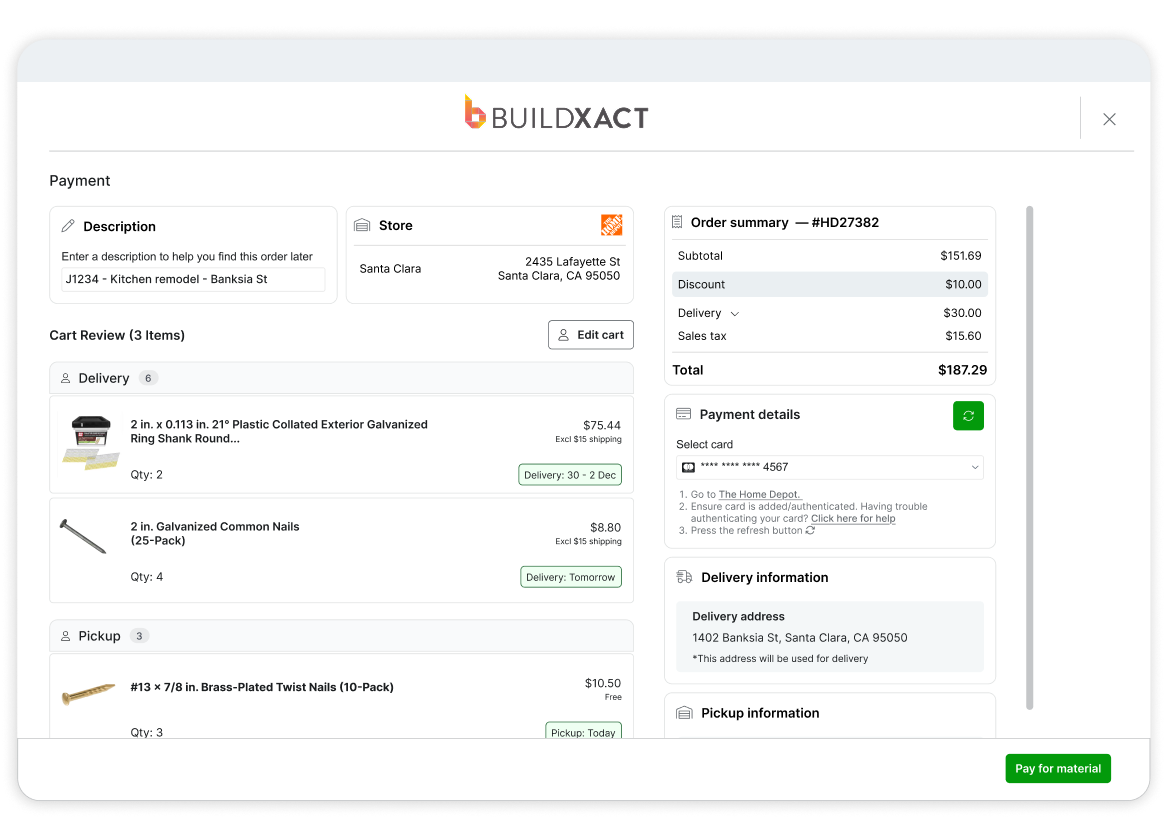
Regardless of where you start, the checkout flow stays consistent. Understanding each step helps you move through orders quickly and avoid common issues.
Checking availability and pricing
When you add items to an order, Buildxact connects to The Home Depot store of your choosing to verify stock levels. You’ll see what’s available for delivery versus pickup. This prevents ordering materials that aren’t in stock and helps you plan around delivery times.
Pricing comes through with your specific discounts already applied. This includes your Home Depot Pro Xtra status, store-level promotions and bulk purchase savings. The price you see in Buildxact matches what you’ll pay at checkout, so there are no surprises.
Setting delivery details
Each order needs a delivery address, which typically pulls from your estimate or job. You can edit this if materials need to go to a different location, like a storage yard or a staging area. For pickup orders, you’ll select your preferred store.
Adding a description helps when you review orders later. If you’ve placed 50 orders for one large project, descriptions like “framing package” or “bathroom fixtures” make it easier to track spending by phase.
Editing your cart
Before finalizing an order, you can add items you didn’t include in your original estimate. Remember, maybe you budgeted for tile but forgot those spacers. Or you realize you need more of something than initially planned.
The search function works flexibly. The Home Depot’s product descriptions vary, so Buildxact’s search looks for close matches even if you put words in a different order or use abbreviations. This makes finding items faster than browsing The Home Depot’s website directly.
Recent orders also appear as an option. Builders who do similar jobs repeatedly can pull up a previous order and add those same items with one click. This creates a shortcut for materials you buy on every project.
Completing checkout
Once your cart is ready, the checkout screen shows your payment method, delivery or pickup details and final pricing. You’ll need a credit card linked to your Home Depot Pro Xtra account. If you get an error about missing payment information, log into your Pro Xtra account directly, add a card to their payment methods section, then return to Buildxact.
After checkout, the order moves from “quoted” status to “order placed.” Home Depot begins fulfilling it, and you’ll receive email notifications as materials get picked, shipped and delivered.
Understanding Order Status
Your material orders screen shows every order you’ve created, with statuses that track where each one stands.
Draft means you started the order but haven’t completed checkout. These sit in your queue until you’re ready to finalize them.
Quoted appears when you’ve synced an order with The Home Depot but haven’t paid yet. This happens if you close the checkout screen before clicking the final payment button.
Order placed indicates payment went through and The Home Depot is processing your purchase. From here, you’ll see updates like “awaiting ETA,” “shipping” and eventually “delivered” as the order progresses.
Failed shouldn’t appear often, but if it does, Buildxact alerts you. Most failures stem from stock issues or payment problems that need resolving before you can resubmit.
Tracking Orders and Deliveries
Once an order is placed, The Home Depot sends status updates that sync into Buildxact. You’ll see when materials are being picked, when they ship and estimated delivery dates. This same information comes through email from The Home Depot, but having it in Buildxact means your team can check order status without asking you directly.
Knowing when deliveries arrive helps coordinate crews. If drywall is scheduled for Thursday, your installers know to show up Friday. If lumber gets delayed, you can adjust schedules before workers arrive at an empty site.
Managing Receipts and Costs
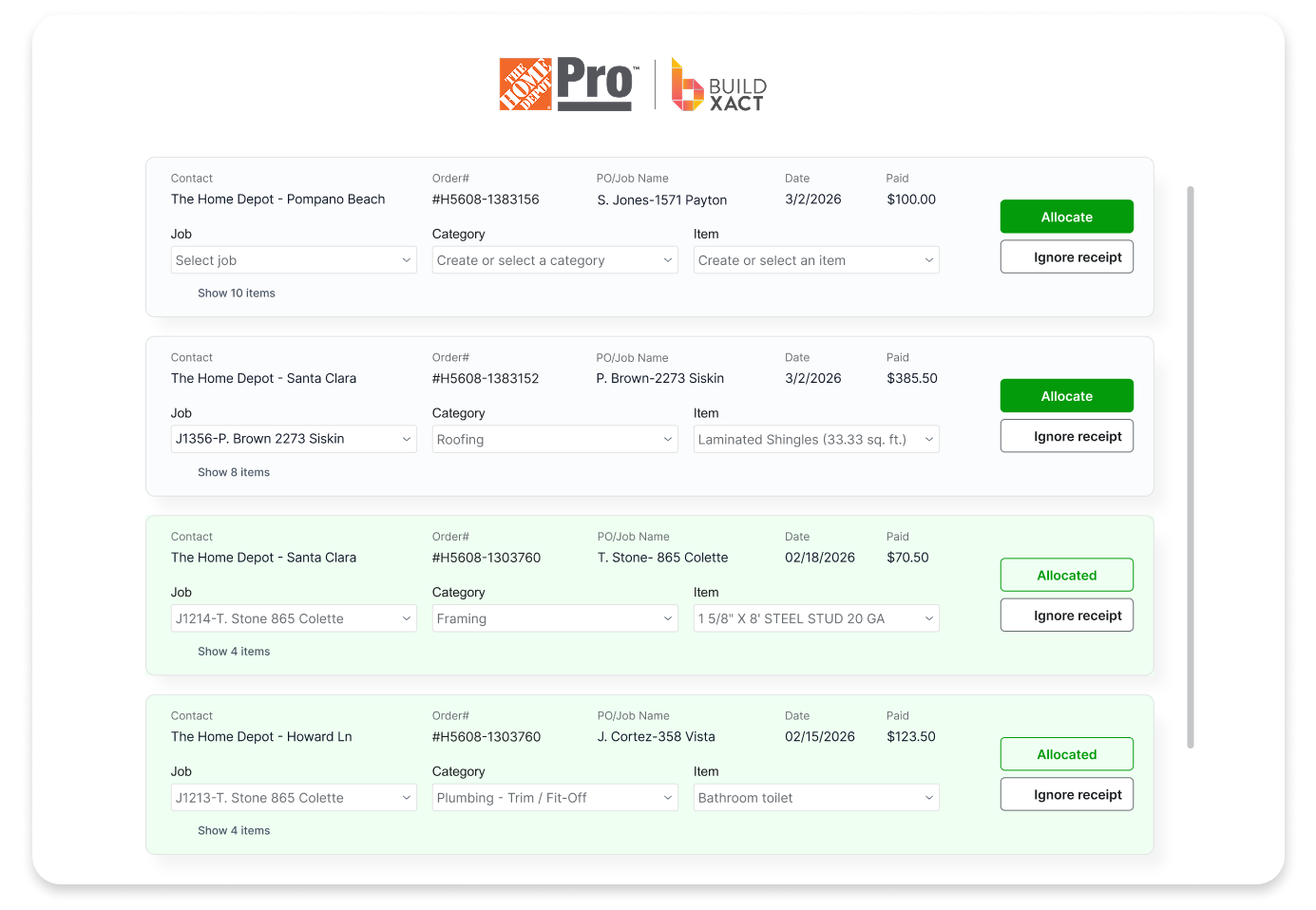
Every purchase tied to your Pro Xtra account flows into Buildxact as a receipt. This includes orders placed through Buildxact, purchases made on The Home Depot’s website and in-store transactions. All of them appear in your receipts list for assignment to jobs.
Allocating costs to projects
Receipts need three pieces of information to update your job costs accurately:
- Job name: Which project does this expense belong to?
- Cost category: Which bucket in your budget should absorb this cost?
- Estimate line item (optional): Which specific line in your estimate does this match?
The first two are required. Without a job and category, Buildxact can’t track where the money went. The third option is helpful when you want tight control over budget-to-actual comparisons.
For example, if you ordered a full lumber package as one estimate line, you can assign the entire receipt to that line. This shows exactly how your estimated lumber costs compared to what you actually paid. If your order included miscellaneous items across multiple trades, assigning just to a category might make more sense.
Once allocated, receipts can be updated to your actual costing screen. You see how much budget remains in each category and whether you’re trending over or under on the overall project.
Tracking savings
Ordering through Buildxact qualifies for additional discounts beyond your standard Pro Xtra pricing. On average, builders save about 8% compared to regular pricing. Some items offer larger discounts, others smaller, but the overall effect reduces material costs noticeably.
This savings gets highlighted when you complete orders, giving you a running total of how much you’ve saved over time. For builders placing frequent orders, these percentages add up to thousands of dollars annually.
Making the most of The Home Depot integration
Getting value from this feature starts with how you build estimates. When possible, use The Home Depot items in your takeoffs and estimates. Buildxact identifies these with icons, making them easy to spot.
Blu, Buildxact’s AI estimating assistant, links items to The Home Depot’s catalog when generating estimates. This means estimates built with Blu are ready for direct ordering without manual item mapping.
For builders who create similar estimates repeatedly, this creates a powerful workflow loop. Blu generates an estimate with Home Depot items. You adjust quantities and pricing as needed. Send the quote to your client. When they accept, you’re one click away from ordering materials. Receipts come back into Buildxact. Your actual costs can then be updated.
Common questions about ordering
Yes, but most builders wait until they’ve accepted the estimate and created a job. Ordering from the estimate screen works fine for small, certain projects. Larger jobs with longer timelines benefit from waiting until contracts are signed to avoid ordering materials you might not need.
Buildxact shows stock availability when you add items to your cart. If something isn’t available for delivery or pickup, you’ll see that before checkout. You can remove the item, find a substitute or submit a quote to Home Depot instead of a full order. The quote option lets you work with a rep or trade desk to source alternatives or get pricing on special orders.
Not at all. Many builders work with multiple suppliers depending on the project. Home Depot might cover your commodity lumber, drywall and finish materials while you source specialty items elsewhere. Buildxact handles materials from any supplier; the direct ordering just makes Home Depot purchases more convenient.
Pickup functionality is being developed with Home Depot. Once available, you’ll select pickup at checkout, choose your store and receive notifications when orders are ready. This works well for last-minute needs or when you’re already planning a store visit.
Getting started with direct ordering
If you’re already using Buildxact and have a Home Depot Pro Xtra account, you’re ready to start. Make sure your Pro Xtra account has a payment method saved. Set your default The Home Depot store in Buildxact so stock availability checks pull from the right location.
Build an estimate with The Home Depot items or use an existing estimate that includes them. Select the items you want to order and follow the prompts. The first time through might feel unfamiliar, but the process becomes quick after a few orders.
For builders new to both Buildxact and this ordering workflow, start small. Order materials for a single room or phase. Get comfortable with how orders sync, how receipts appear and how costs allocate. Once the process clicks, scaling up to full project orders feels natural.
Material ordering shouldn’t require switching platforms, copying information or hunting down receipts. When everything happens in one place, you spend less time on admin and more time doing what you do best: building quality projects that keep clients happy and your business growing.
Want to learn more about Buildxact and how you can benefit from The Home Depot integration? Schedule a demo with one of our friendly team members, or give Buildxact a free test run!